Tuning parameters of the video tracking window
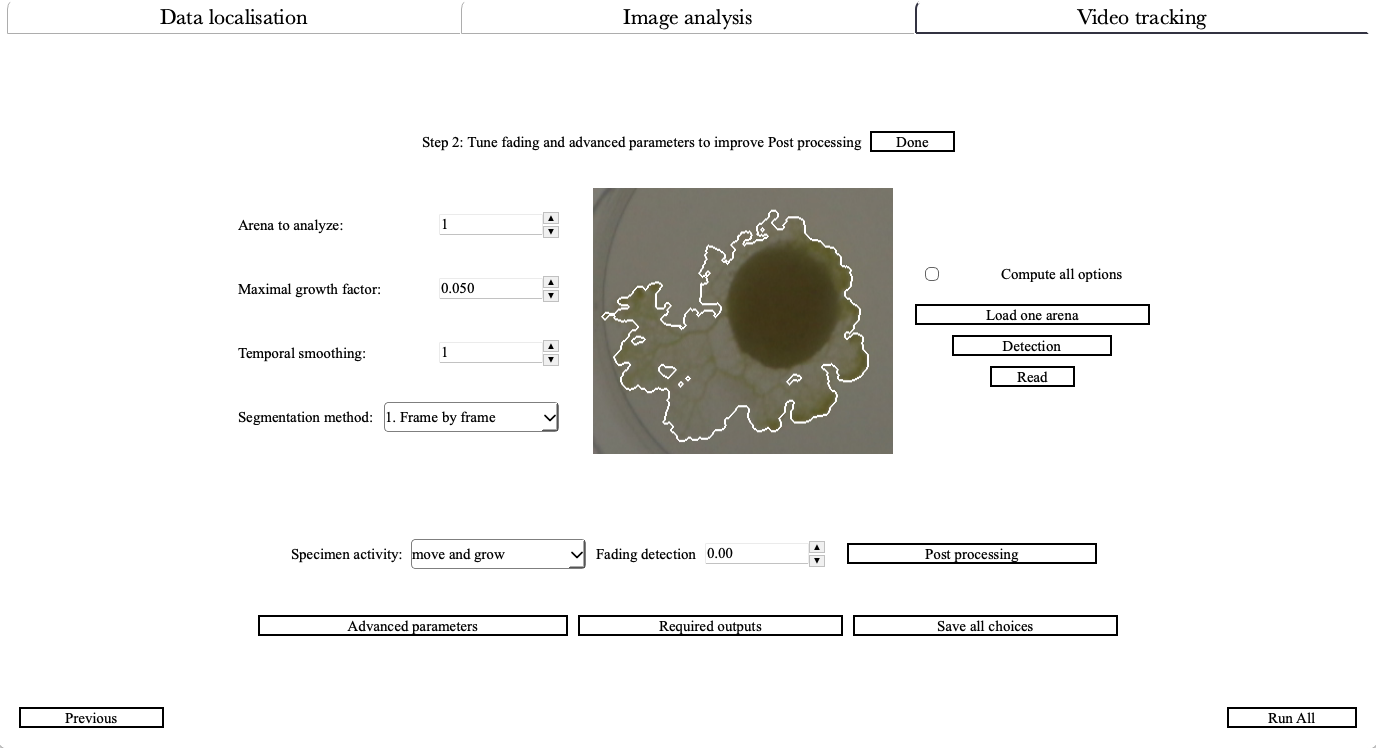
Following successful specimen detection (Image analysis), fine-tune the video tracking algorithms in this window. Here, users adjust segmentation methods (e.g., Frame, Threshold, and Slope), define spatial constraints like the maximal growth factor, and apply post-processing filters to eliminate noise and refine detection accuracy (Figures 5–7). By iteratively testing tracking parameters and validating results through visual feedback, researchers ensure reproducible quantification of temporal changes such as cell migration, colony expansion, or morphological shifts.
Detailed description
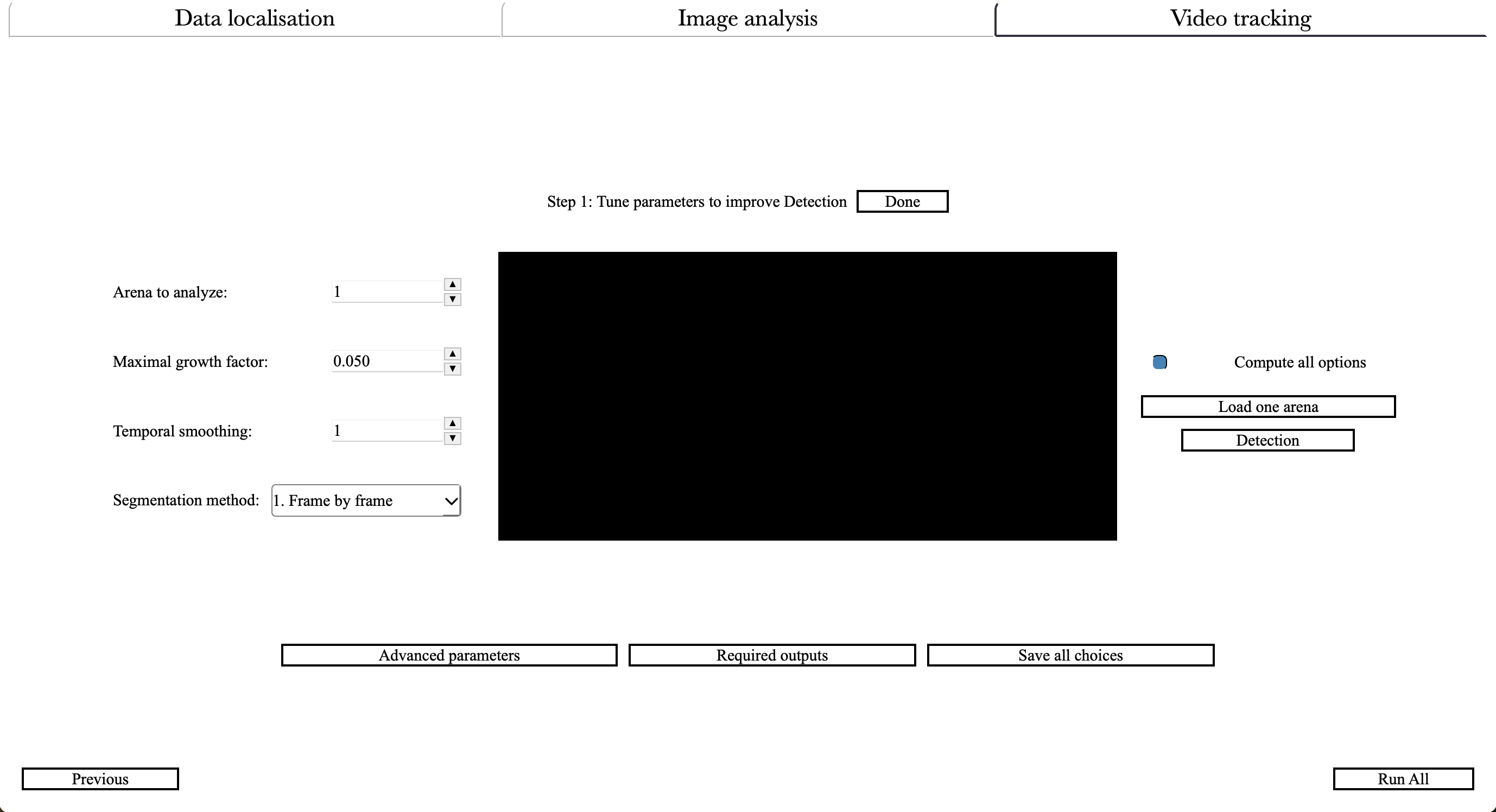
Specimen activity:
The behavior of the specimen(s) changes how Cellects post processes the data (after video segmentation):
- move: Specimen(s) can move from one place to another in the arena but are not expected to grow. The status of an area (specimen or background) does not depend on where the specimen(s) were previously.
- grow: Specimen(s) only grow, they cannot leave an area. The previous position of the specimen(s) is used to detect its current position.
- move and grow: Specimen(s) are expected to move and grow. This feature use the previous position of the specimen(s) to evaluate growth and the pixel intensity history to evaluate when they are left.
Fading detection:
Fading detection monitors when specimens leave previously occupied areas, useful for moving organisms rather than static growth. Uncheck this option if not needed. Set a value between minus one and one to control sensitivity:
- Near minus one: Minimal false removal of specimen traces.
- Near one: High risk of over -removal from all areas.
Maximal growth factor:
This is the maximum allowable proportion of image area that may be covered by specimen movement between frames. Adjust accordingly:
- Increase if specimen size is underestimated.
- Decrease if specimen size is overestimated.
Note
- Precisely, this defines an upper bound on relative coverage changes between sequential images.
Segmentation method:
Cellects includes five video tracking options:
- Frame option: Applies the image analysis algorithm frame by frame, without temporal dynamics.
- Threshold option: Compares pixel intensity with the average intensity of the whole image at each time step.
- Slope option: Compares pixel intensity slopes with an automatically defined threshold.
- T and S option: logical AND of threshold and slope options.
- T or S option: logical OR of threshold and slope options.
Note
- Selecting the Compute all options before dunning Detection allows method comparison. Onceanalysis completes. Once the analysis completed, select one option and click Read.
- Computing only one option is faster and requires less memory.
- When Heterogeneous background or Grid segmentation has been selected in the image analysiswindow, only the Frame option remains available.
Arena to analyze:
This arena number selects a specific arena in the current folder. The user can choose an arena, use an Operation to load and analyze it, then Read results.
Note
- Cellects automatically names the arena by their position (left to right, top to bottom).
- For single arena setups, use 1.
- full detect load the arena video, apply the segmentation method and post processing algorithms.
- Videos can be saved (as .h5 files) for later analysis using the Advanced parameter Keep unalteredvideos.
Operation:
Selecting the 'load' operation
- load: will load one arena associated with Arena to analyze. The center of the window displays the first frame of that arena's video.
- quick detect: applies a (or all) segmentation methods to one arena. Once finished, click Read to view the detection result. If correct, try post processing using full detect.
- full detect: applies detection enhancements such as binary operations (opening, closing, logical ops), fading detection tracking (when specimens not only grow but also move), correct errors around initial shape (when the contour of the initial position of the specimen is hard to detect), connect distant shapes (when the specimen's heterogeneity create wrong disconnections in the video detection), prevent fast growth near periphery (when arena's border may be wrongly detected as specimen).
Note
- Click Run one to apply current operation to the current Arena to analyze
- Click Read to review the full video.
Run:
Clicking Run one arena triggers the selected Operation and Segmentation method on the Arena to analyze
Read:
Clicking Read starts the video display corresponding to the current state of the analysis.
Save Results:
Complete the current video analysis by clicking this button for single arena processing. Saving includes:
- Calculating all selected descriptors (.csv) per frame.
- Generating validation videos for detection verification.
- Storing configuration parameters for reproducibility.
Note
- This action will overwrite results and validation data for the current arena.
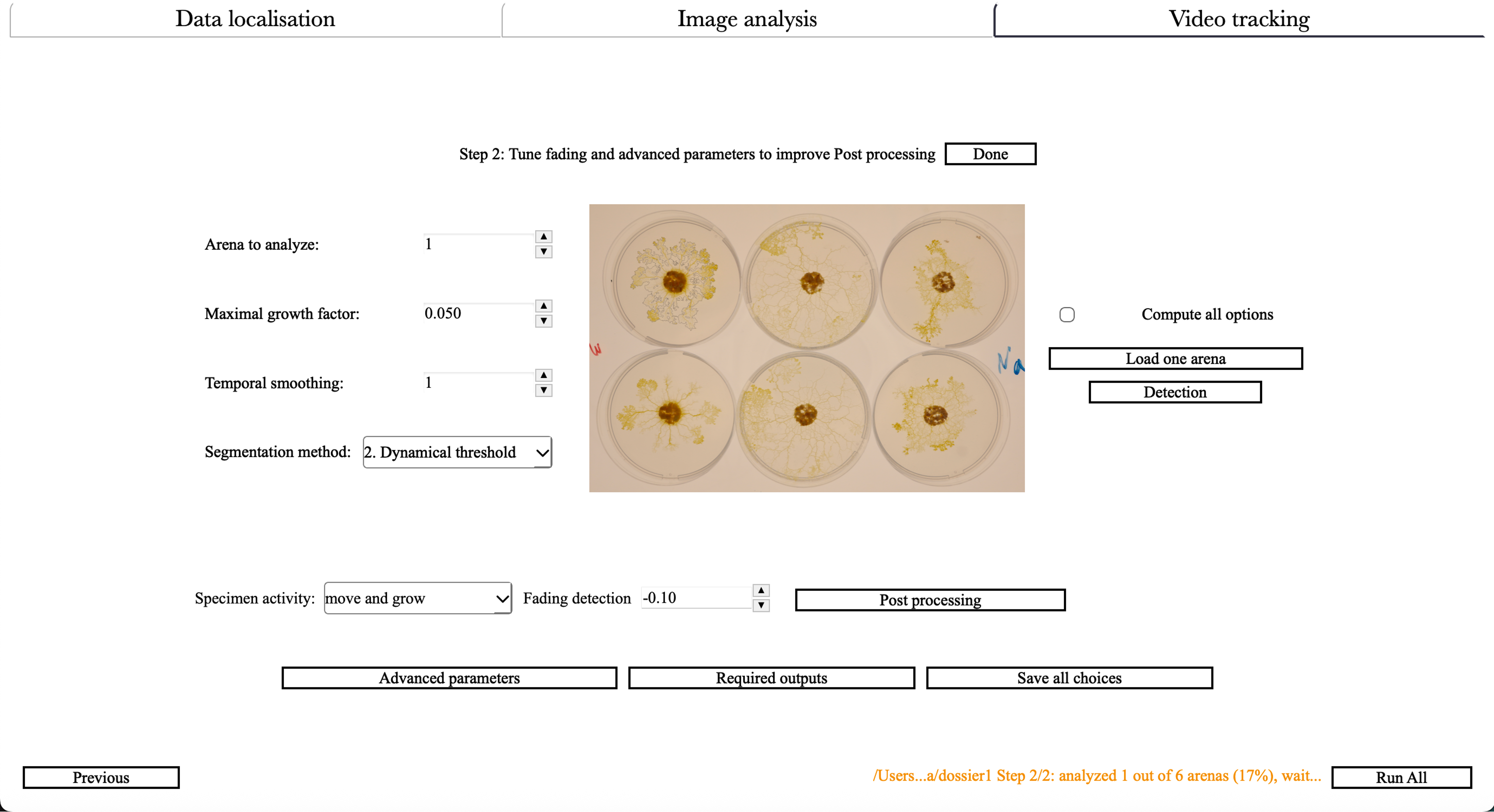
Run All Arenas:
Apply validated parameters to all arenas by clicking Run All Arenas. This action:
- Generates full -resolution video outputs (storage -intensive)
- Processes videos sequentially with real time visualization
- Calculates selected descriptors for each frame
- Produces validation content at multiple intervals
- Preserves current configuration settings
Save all choices:
Clicking Save all choices writes/updates configuration files to preserve analysis parameters for future replication.